Panels FX
Cuts the video into panels: rect, rounded, ellipse, diamond or window arch, with heights that morph over time.
R$ 16,90 until 11/30
Sermon graphics generated in Resolume: title, lower third, verse, camera + verse, sermon points, quotes, Bible references and announcements.
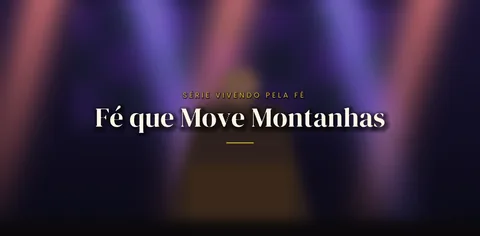 1. Title Intro · Classic
the sermon title intro, with the series name above it
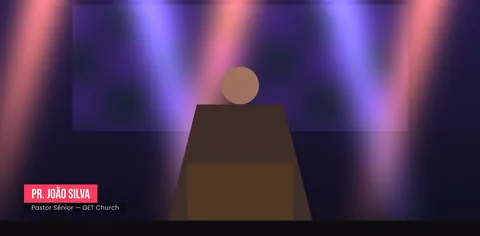 2. Lower Third · Solid Bar
the preacher's name on a solid bar with the role/church below
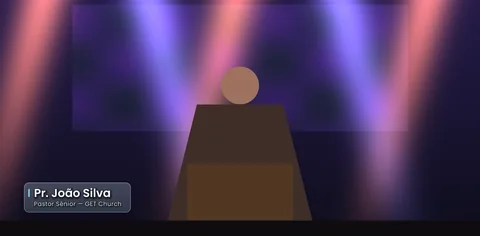 3. Lower Third · Glass
the preacher's name and role on a glass card
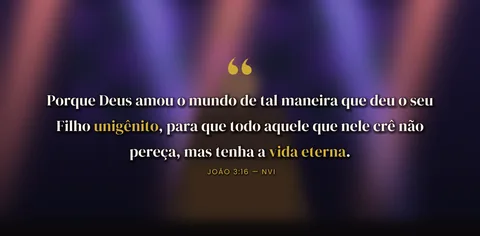 4. Verse Card · Quote
the verse with big quote marks and words in the accent color
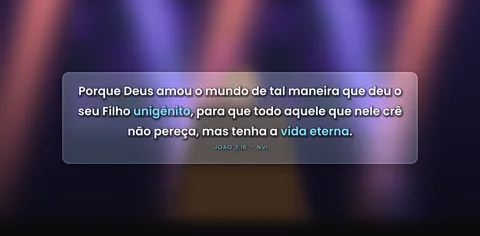 5. Verse Card · Glass
the verse on a glass card, with reference and version
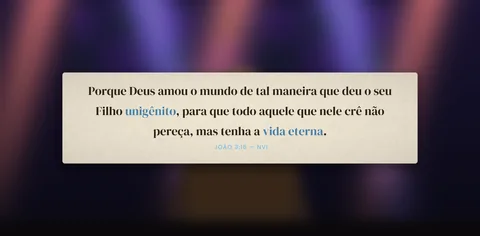 6. Verse Card · Paper
the verse on a paper card
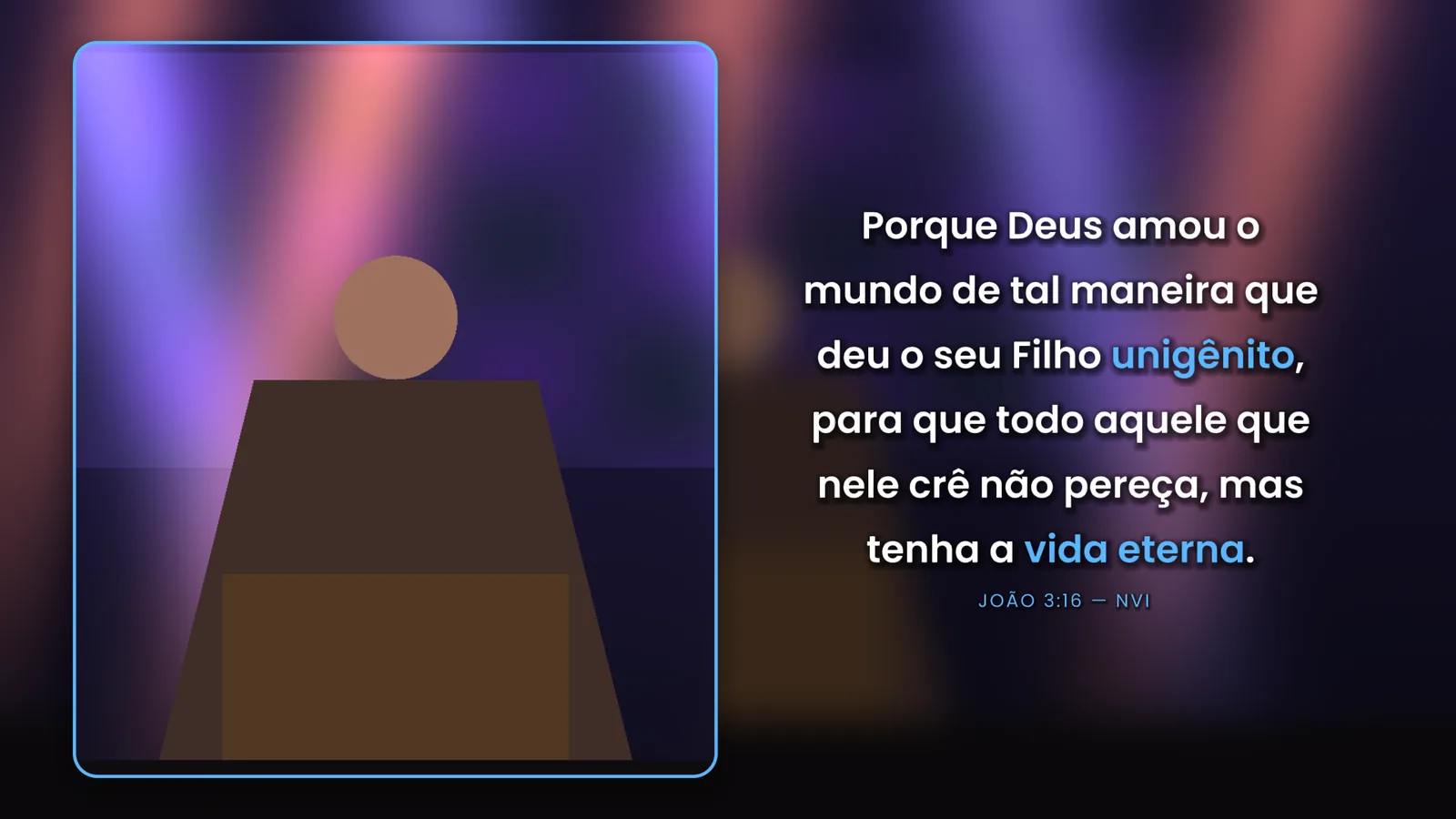
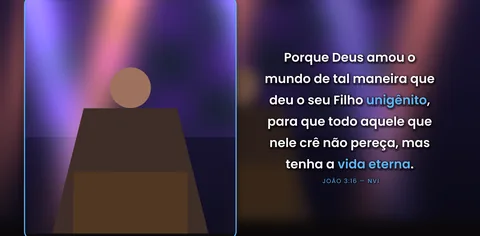 7. Split Layout · câmera + versículo
the camera on one side, with rounded corners and a border, and the verse on the other
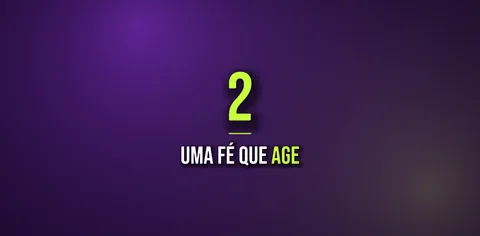 8. Topic
the sermon point: a big number + text
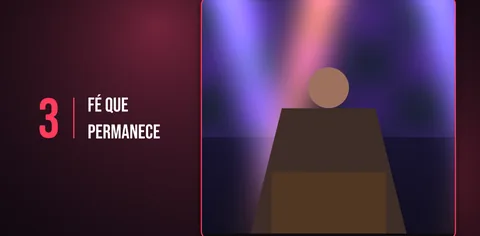 9. Split Layout · câmera + tópico
the point on one side and the camera on the other
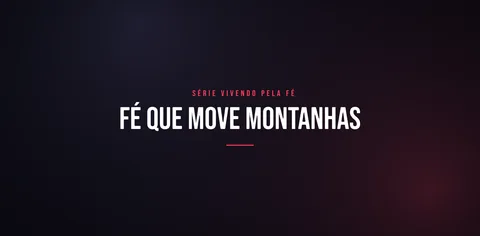 10. Title Intro · Conference
the title intro with a condensed font
Title Intro, Lower Third, Verse Card, Split Layout (camera + verse), Topic, Quote, Bible Ref, Points List and Ticker (announcement bar). All generated by the plugin, no pre-rendered video.
Reads the verse on air over the network and fills in text, reference and version. You still decide when it goes live.
Reads your Advanced Output: the animation on the main panel, the verse on the sides and the service artwork on the rest, with rounded corners.
Use the series PNG/JPG as the background, and Colors From Image copies its colors to the text and panels.
21 built-in fonts plus your own (.ttf/.otf), 22 presets and 8 lower third styles.
Typewriter, Word by Word and Progressive Highlight, *highlights* with asterisks, Safe Area, shadow and outline.
Sermon FX generates the sermon-time graphics right inside Resolume, with no pre-rendered video: the sermon title intro (Title Intro), the preacher's name (Lower Third), an animated Bible verse (Verse Card), camera and verse side by side (Split Layout), the sermon points (Topic), a highlighted quote (Quote), a Bible call-out (Bible Ref), a list of points (Points List) and an announcement bar (Ticker). The verse can come straight from Holyrics, SPresenter or ProPresenter 7: the plugin reads what's on air over the network and fills in the text, reference and version by itself, while you still decide when it goes live. On multi-panel LED walls it reads your Advanced Output and lets you pick screens and slices by name: the animation on the main panel, the verse on the sides and the service artwork on the rest, with rounded corners. Your service artwork (PNG/JPG) can be the background, and one button copies its colors. You get 21 built-in fonts plus your church's own font (.ttf/.otf), 22 presets, 8 lower third styles and animations like Typewriter, Word by Word and Progressive Highlight. Highlight words with *asterisks*, break lines with |, and count on Safe Area, shadow and outline for long-distance reading, on any LED aspect ratio.
Free update for existing customers: just request your link again in My purchases.
The same controls you get in Resolume.
| Parameter | Range / options | Default |
|---|---|---|
| GERAL · Mode | Title Intro · Lower Third · Verse Card · Split Layout · Topic · Quote · Bible Ref · Points List · Ticker (Resolume only shows the parameters of the selected mode; the Source group shows in all of them) | — |
| GERAL · Preset | 21 presets + Custom: Clean, Classic, Conference, Glass, Youth, Sunset, Royal, Neon, Elegant, Earth, Mono, Ocean, Crimson, Midnight, Gold, Pastel, Kids, Fire, Forest, Broadcast, Minimal: sets font, colors, styles and animations; change anything and it goes back to Custom | — |
| GERAL · Mode Transition · Transition Time | when you change Mode with the graphic on screen: Cut (hard cut), Fade (smooth blend) or Animate (plays the entrance again) · Fade duration | — |
| GERAL · In · Out | buttons to bring the graphic in and out (map them to MIDI/keyboard) | — |
| GERAL · Auto In · Auto Out (s) | on: comes in by itself when the clip is triggered (off by default: the graphic only comes in when you press In) · goes out by itself after X seconds (Off = stays on screen) | Auto In: Off |
| TITLE · Title · Series · Intro Anim | sermon title + series name; Fade Up, Mask Reveal, Letter by Letter, Cinematic Zoom and Split Lines | — |
| LT · Name · Role · LT Style | preacher's name and role/church; Minimal, Solid Bar, Line + Text, Glass, Underline, Gradient Bar, Outline Box and Pill | — |
| LT · LT Side · LT Margin Y · LT Margin X | left/center/right · height · distance from the side | — |
| VERSE · Verse · Reference · Version | verse + reference + version (e.g. JOHN 3:16 — NIV) | — |
| VERSE · Card Style | Big Center, Shadow Box, Quote (big quote marks), Paper and Glass | — |
| VERSE · Verse Anim | Fade, Typewriter, Word by Word and Progressive Highlight (words light up as they are read) | — |
| SPLIT · Split Content · Camera Side · Ratio | the camera shrinks from full screen to one side and the verse (or the point) comes in on the other; 50/50, 60/40 or 70/30 | — |
| SPLIT · Cam Zoom · Cam Pan X · Cam Pan Y | frame the preacher | — |
| SPLIT · Corner Radius · Border | rounded corners and border on the camera frame | — |
| TOPIC · Topic Number · Topic Text | big number + text (e.g. 1 Faith that acts); Topic Number = 0 hides the number | — |
| QUOTE · Quote Text · Quote Author | a highlighted quote from the preacher, with big quote marks and the author; uses Verse Anim | — |
| BIBLE REF · Ref Label · Reference · Version | "Open your Bibles to" + a big reference + version; Reference and Version can come from Holyrics, SPresenter or ProPresenter | — |
| LIST · List Title · List Items · Current Item | all the sermon points in a list; List Items with the points separated by | ; Current Item highlights the current point and dims the others (0 = none) | — |
| TICKER · Ticker Label · Ticker Text · Ticker Speed · Ticker Position | a scrolling text bar (announcements): colored label + text, speed and Bottom or Top position; *word* is highlighted | — |
| LOOK · Background · Dim · Blur | in Title, Verse, Split and Topic modes: dims, blurs or replaces the camera background; Transparent for a layer on top; Image for the service artwork | — |
| LOOK · Font · Font File | 21 built-in fonts or Custom File: your own .ttf/.otf (e.g. your church or series font) | — |
| LOOK · Uppercase | turns all text uppercase (series and reference are always uppercase) | — |
| LOOK · Accent · Text Color · Bg Color | your church/series colors; *word* comes out in the accent color and | breaks the line | — |
| LOOK · Legibility · Safe Area | shadow and/or outline for LED readability · margin for LED walls with cut edges or projection | — |
| LOOK · Mix | blends with the original | — |
| IMAGEM · Background Image · Image Fit | PNG/JPG of the service or series artwork; Cover (fills the screen), Fit (whole image), Stretch or Canvas (continues across panels) | Cover |
| IMAGEM · Colors From Image | button: copies the artwork colors to the accent, the text and the panels (Bg Color) | — |
| LED PANELS · Use Advanced Output · Screen | reads the Advanced Output screens and slices and shows their real names; slice numbers are per screen, left to right | — |
| LED PANELS · Main Slice · Verse Slice · Verse Slice 2 | where the mode's animation goes (Auto = the largest slice) · where only the verse card goes (None = none) | — |
| LED PANELS · Join Slices | merges slices into one area (e.g. 4+5 or 1+2,6+7) | — |
| LED PANELS · Other Slices | Show Input (the clip), Transparent or Background Art (the service artwork) | — |
| LED PANELS · Show Names | Off / Number / Number + Name: green outline = MAIN, blue = VERSE, yellow = others (turn off before the service) | — |
| LED PANELS · Slice Corners · Round Slices | rounds the slice corners (0 = square) · Main + Verse or All Slices | — |
| LED PANELS · Reload Slices · Setup File · Panels Status | re-reads the Advanced Output right away · loads the preset .xml by hand · shows the screen and slices it read | — |
| AREA · Use Area · Area X · Area Y · Area W · Area H | without Advanced Output: builds the layout only inside this rectangle (composition pixels) | — |
| AREA · Copy to Area 2 · Area 2 X · Area 2 Y | copies the same card to another panel of the same size (e.g. the verse on both sides) | — |
| AREA · Outside Area | Show Input (shows the clip outside the area) or Transparent | — |
| SOURCE · Source | Manual, Holyrics, SPresenter or ProPresenter: reads the verse on air and fills in Verse, Reference and Version (it never triggers anything); only that program's fields are shown | — |
| SOURCE · Connection | shows whether it connected (and the reference on air) or why it failed | — |
| SOURCE · Content | Bible only (verses only) or Everything (lyrics and texts) | — |
| SOURCE · Holyrics Address · Holyrics Screen | IP of the Holyrics PC (same PC: 127.0.0.1; IP:PORT if the HTML uses another port) · HTML 1 (view/text) | — |
| SOURCE · SPresenter IP · SPresenter Port · SPresenter Token · SPresenter Layer | from the SPresenter integration API "base URL" (e.g. 192.168.101.8 and 5050) · a token with live:read and outputs:read (spk_...) · auto (finds the verse layer) or the layer number | — |
| SOURCE · ProPresenter IP · ProPresenter Port | from the Network screen of ProPresenter 7.9 or newer (no password); verse, reference and version come from the slide on air | — |
Both work. On the camera: drag Sermon FX onto the camera clip or layer; in Title, Verse, Split and Topic modes the Background parameter dims, blurs or replaces the background. On top of everything: put an empty clip on a layer above, drag Sermon FX onto it and set Background = Transparent; the lower third, for example, then sits over the camera, the lyrics and the backgrounds. Tip: keep one Lower Third layer and one Verse layer, each with its Sermon FX already filled in, and just trigger the clips.
1) In Holyrics, go to the display settings > HTML 1 tab (view/text): keep Stage View checked and Uppercase, Comment, Communication Panel and Show next verse unchecked (no need to touch the CSS). 2) On the Resolume PC, with a verse on air, open http://HOLYRICS-IP/view/text.json in the browser: you should see text with "type":"BIBLE". 3) In Sermon FX, Source group: Source = Holyrics, Holyrics Address = the Holyrics PC's IP (same PC: 127.0.0.1), Holyrics Screen = HTML 1 (view/text) and Content = Bible only or Everything. 4) The Connection bar shows whether it connected (and the reference on air) or the error. The plugin only fills in the text: you still trigger it whenever you want. If it doesn't connect, check the IP and allow Holyrics through the Windows firewall.
Yes. SPresenter: in Settings > Integration API, turn on "External API enabled" and create a token with live:read and outputs:read; in Sermon FX, set Source = SPresenter, fill in SPresenter IP and SPresenter Port from the "base URL", paste the token into SPresenter Token and leave SPresenter Layer on auto. ProPresenter 7.9 or newer (no password): in Settings > Network, turn on "Enable network"; in Sermon FX, set Source = ProPresenter and fill in ProPresenter IP and ProPresenter Port from the Network screen. In both cases the verse, reference and version come from what is on air, and you still trigger it whenever you want.
Auto In is off by default: the graphic only comes in when you press In. With Auto In on, the graphic comes in by itself when the clip is triggered. Auto Out (s) takes it out by itself after X seconds; on Off, it stays on screen until you press Out. In and Out can be mapped to MIDI or the keyboard, and if you change the text while the graphic is on screen, only the text animates again. When you change Mode with the graphic on screen, Mode Transition picks Cut, Fade or Animate.
Yes: Resolume Arena and Avenue 7, on Windows.
Yes. It works in Resolume Arena and Avenue 7, on 64-bit Windows 10 or 11.
No. It runs well even on a laptop's integrated graphics (Intel or AMD). A dedicated card leaves headroom for more layers and effects.
Not yet. For now FX Suite plugins are Windows only.
The license is personal: install it on the computers you operate, including your church media team's. Just don't pass on or share the files.
You have a 7-day guarantee. Write to vfxsites@gmail.com and we refund you.
Yes. When a new version comes out, it shows up in My account marked “Update available”: sign in with your purchase email and download it, always the latest version.
Cuts the video into panels: rect, rounded, ellipse, diamond or window arch, with heights that morph over time.
Blinds that open and close to reveal the video, on a single fader or in time with the band.
Tiles that appear in waves, diagonals, from the center, at random or as a checkerboard.
Frame with independent rounded corners and a soft edge. Inverted, it becomes a vignette.